Little Notes by Frido
Keep the things you need to remember right where you’ll see them.

- iPhone
Little Notes by Frido puts personal notes on your iPhone Home Screen and Lock Screen. Write down what you need to remember, then see it without opening the app.
A little less to remember
The shopping list. A pickup time and order number. That idea for Saturday. Save a note and put it in a Home Screen widget, so the details are there when you reach for your phone.
Keep one thing in sight
Pin a note to your Lock Screen when you want it close. Your one big thing for today, something you keep forgetting, or a kind word to yourself. A glance is all it takes.
Make it feel like yours
Choose colors for your widgets to suit your Home Screen. Keep a practical list close or give a little encouragement a place of its own.
Your thoughts stay with you
Personal notes stay on your device. Write and read them offline, without creating an account or joining the Connected beta.
Connected Notes
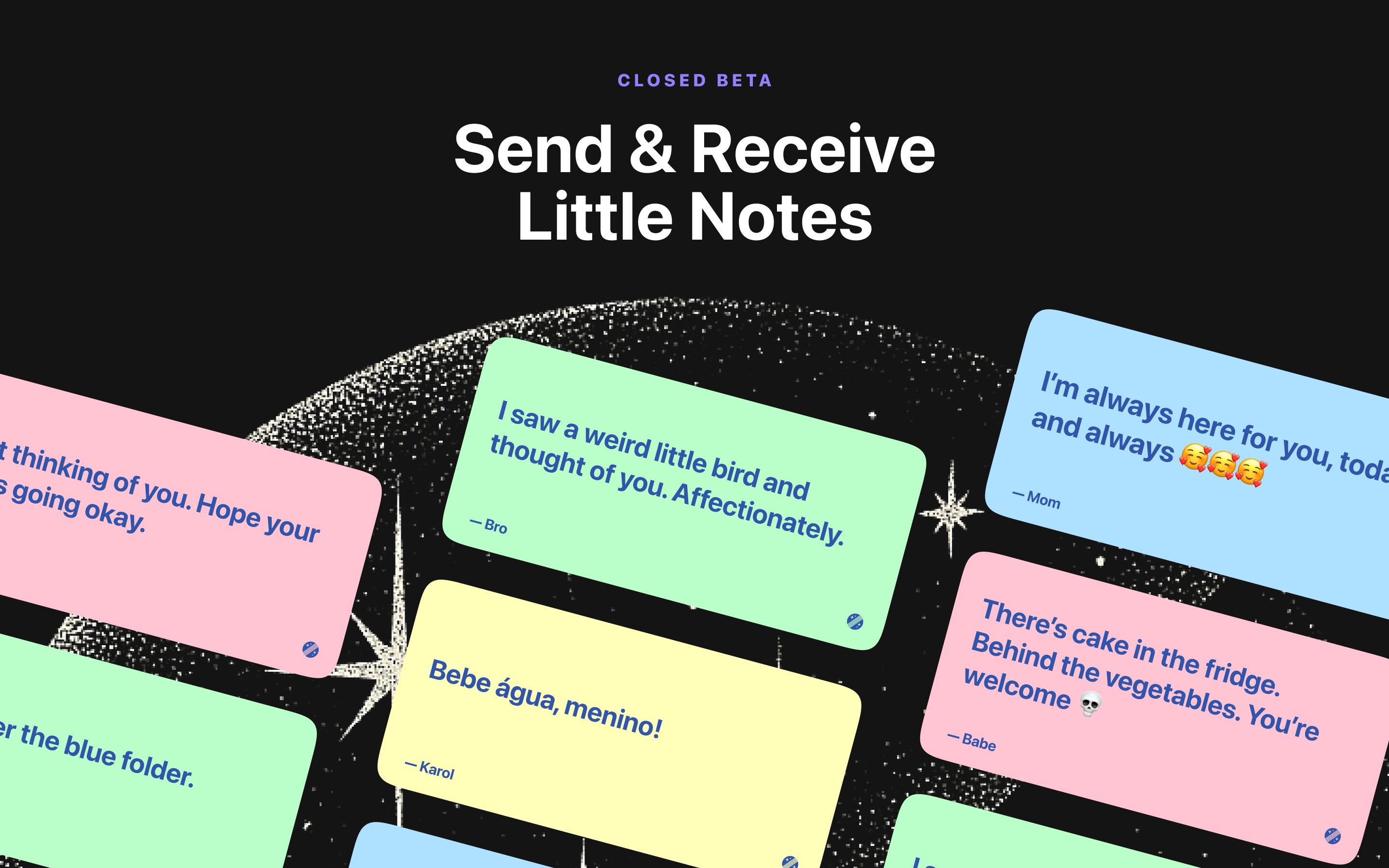
Send a love note to your partner's Home Screen, an inside joke to a friend, or a reminder to family. Whether you are together or in a long-distance relationship, Connected gives those little messages a place outside the chat inbox.
Connected is available by invitation only during the closed beta. Personal notes, widgets, and Lock Screen pinning are available without joining.
Everything in Little Notes
- Write and save personal notes
- Display your notes in Home Screen widgets
- Pin a note to your Lock Screen
- Choose different colors for your widgets
- Read and write personal notes offline
Yours to keep. No ads or subscriptions.
A few things you might wonder.
How do I put a note on my iPhone Home Screen?
Write and save a personal note in Little Notes, then add a Little Notes widget to your Home Screen to display it. It works like a sticky note on your phone: you can read it without opening the app.
Can I keep a note on my iPhone Lock Screen?
Yes. Pin a personal note to your Lock Screen to keep it in sight. It can be a shopping list, pickup details, or a reminder of what matters today. You do not need to join Connected to use it.
Can I use a notes widget for shopping lists and daily reminders?
Yes. Write a short list, an order number, or your main priority for the day. Your note is visible on your Home Screen widget or pinned to your Lock Screen, so you can check it without looking through the app.
Can I change the colors of my notes widgets?
Yes. Personalize your Home Screen widgets with different colors. You can change how a note looks without changing what you wrote.
Can I use Little Notes offline without an account?
Yes. Personal notes work offline and do not require an account. You can write notes, use Home Screen widgets, and pin a note to your Lock Screen without a Connected invitation or subscription.
Is Little Notes for long-distance couples?
Its Connected feature is, and it is currently an invitation-only closed beta. Long-distance couples can leave notes for a partner to find on their Home Screen, even when their schedules or time zones differ. Note sharing is not generally available yet; personal notes work without joining the beta.
How do I send notes to my partner's iPhone Home Screen?
You need access to Connected's invitation-only closed beta. Once you and your partner have connected in the app and added the Home Screen widget, you can send a note for them to discover there. Downloading Little Notes does not automatically grant access to note sharing.
Can I send love notes through a couples widget on iPhone?
In Connected's invitation-only closed beta, you can send written notes: a love note, an inside joke, a small reminder, or a simple "thinking of you." Couples can share these through their Home Screen widgets without starting another chat conversation. Connected also works with friends and family.
Where are my personal and Connected notes stored?
Personal notes stay on your device. Notes sent through Connected are AES-encrypted and removed from the server after delivery. Connected requires an invitation during the closed beta; writing personal notes does not.
For the little things.
Write down what you need today and give it a place where you will see it. Practical, personal, or a little of both.
Available on iPhone. Requires iOS 18.1 or later.